> ## Documentation Index
> Fetch the complete documentation index at: https://developers.fireblocks.com/llms.txt
> Use this file to discover all available pages before exploring further.
# Setup
For Fireblocks' recommended embedded wallet solution, see [Dynamic Embedded Wallets](/docs/dynamic-embedded-wallets). The documentation below covers the legacy Embedded Wallet APIs and SDKs.
Fireblocks no longer supports the **Reactive Native SDK** and **Flutter SDK**.
# Web SDK Installation
Install the Fireblocks "EW SDK" and "EW Core SDK" using `npm`:
```bash Shell theme={"system"}
npm i @fireblocks/ncw-js-sdk
npm i @fireblocks/embedded-wallet-sdk
```
Or `yarn`:
```bash Shell theme={"system"}
yarn add @fireblocks/ncw-js-sdk
yarn add @fireblocks/embedded-wallet-sdk
```
You can find the web demo code [here](https://github.com/fireblocks/ncw-web-demo-v2).
# Android SDK Installation
First, add our maven repository configuration to your `settings.gradle` file:
```groovy Gradle theme={"system"}
repositories {
maven {
url "https://maven.fireblocks.io/android-sdk/maven"
name = "android-sdk"
credentials(HttpHeaderCredentials) {
name = "Deploy-Token"
value = "-fU8ijmuPohHaqDBgpaT"
}
authentication {
header(HttpHeaderAuthentication)
}
}
}
```
Then, add the Fireblocks SDKs dependency to your application's `build.gradle` file using the most updated bom version:
```groovy Gradle theme={"system"}
implementation "com.fireblocks.sdk:bom:1.0.2"
implementation "com.fireblocks.sdk:ew"
implementation "com.fireblocks.sdk:ncw"
```
* You can find the Android Demo code [here](https://github.com/fireblocks/android-ncw-demo).
* You can find the Android SDKs documentation [here](https://fireblocks.github.io/ncw-docs/android/).
# iOS SDK Installation
First, in your iOS Project, add the [Fireblocks Embedded Wallet SDK](https://github.com/fireblocks/ew-ios-sdk) package:
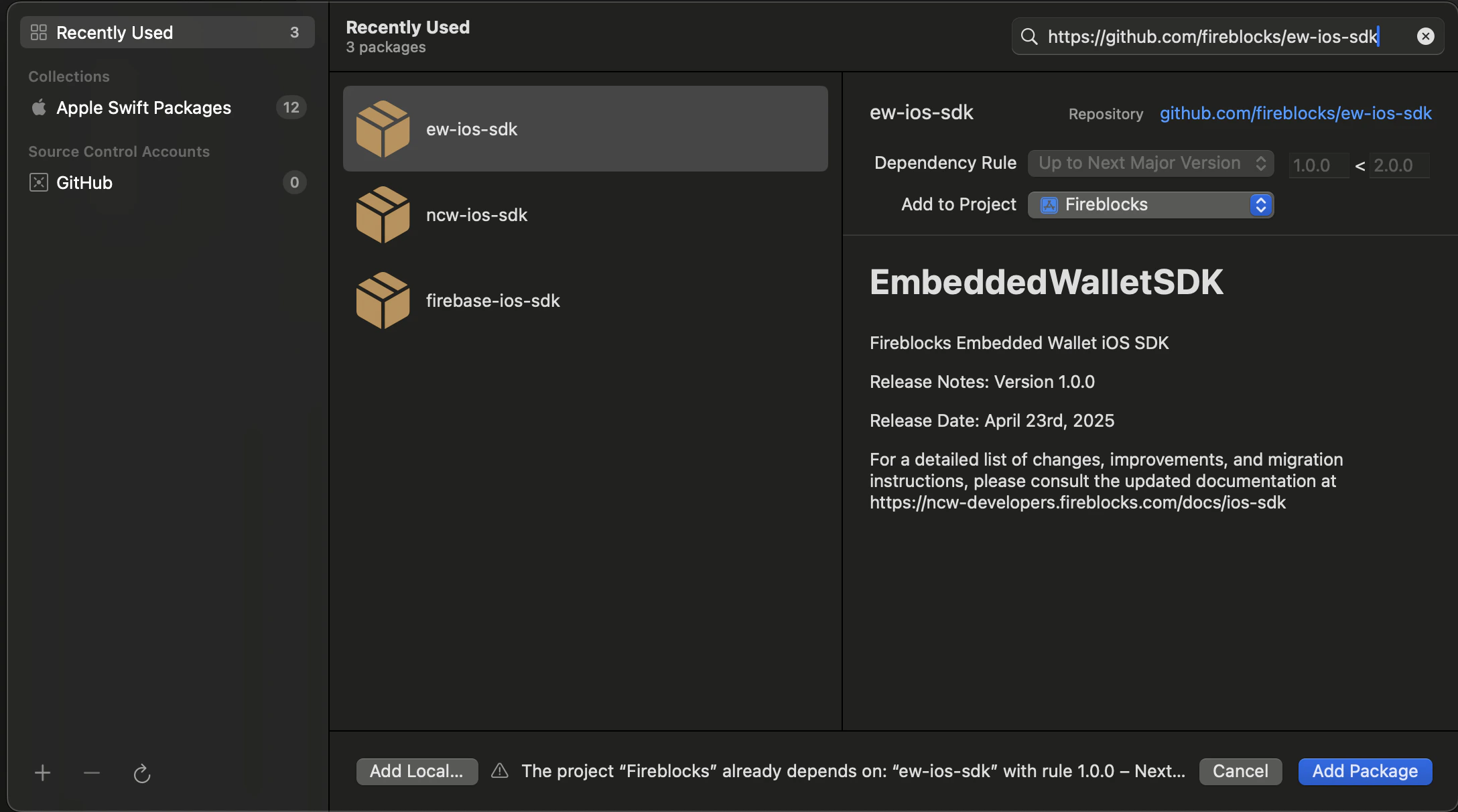 Now add the the [Fireblocks NCW iOS SDK](https://github.com/fireblocks/ncw-ios-sdk) package:
Then, after the SDK packages are added to the project, you should see them under the **Package Dependencies** section in the Project Navigator:
Now add the the [Fireblocks NCW iOS SDK](https://github.com/fireblocks/ncw-ios-sdk) package:
Then, after the SDK packages are added to the project, you should see them under the **Package Dependencies** section in the Project Navigator:
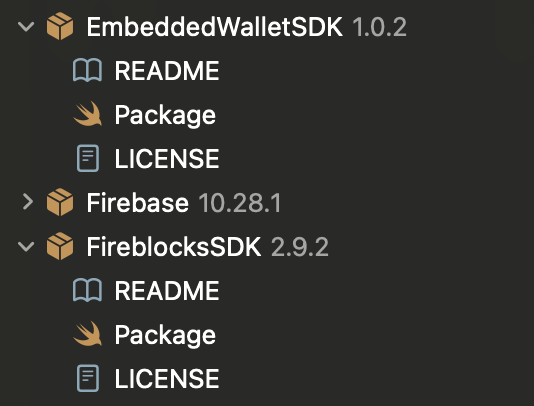 Lastly, import the SDK libraries:
```swift Swift theme={"system"}
import EmbeddedWalletSDK
import FireblocksSDK
```
* You can find the iOS demo code [here](https://github.com/fireblocks/ncw-ios-demo).
* You can find the iOS SDKs Docs [here](https://fireblocks.github.io/ncw-docs/ios/).
Lastly, import the SDK libraries:
```swift Swift theme={"system"}
import EmbeddedWalletSDK
import FireblocksSDK
```
* You can find the iOS demo code [here](https://github.com/fireblocks/ncw-ios-demo).
* You can find the iOS SDKs Docs [here](https://fireblocks.github.io/ncw-docs/ios/).