> ## Documentation Index
> Fetch the complete documentation index at: https://developers.fireblocks.com/llms.txt
> Use this file to discover all available pages before exploring further.
# Install SGX Azure API Co-signer
## Overview
To install an SGX Co-signer in Microsoft Azure and connect it to your workspace, follow these steps:
1. **Setup and configure your Azure environment**
Prepare your Azure environment by creating and configuring the required resources. Ensure it meets the necessary specifications and security settings.
2. **Add a Co-signer to the workspace using an API user**
Using the Fireblocks Console or APIs, create an API user and use it to add a Co-signer to the workspace.
3. **Install and connect the Co-signer to the workspace**
Download the installation script to the SGX-capable virtual machine and run the script to install the Co-signer. Once installation is complete, the workspace owner approves the new MPC key shares for the API user through the Fireblocks mobile app.
You can now view the Co-signer and its paired API user in your Fireblocks Console. Additionally, you can retrieve information about them using the Co-signer APIs.
***
## Step 1: Setup and configure your Azure environment
### Step 1.1: Allowlist domains
To ensure the Co-signer can be installed and operated successfully, add the following domains to your allowlist:
| Domain | Owner |
| ------------------------------------------------- | -------------------------- |
| `mobile-api.fireblocks.io` | Fireblocks |
| `signurl.fireblocks.io` | Fireblocks |
| `s3signurl.fireblocks.io` | Fireblocks |
| `fb-certs.s3.amazonaws.com` | AWS |
| `fb-cosigner-images.s3.amazonaws.com` | AWS |
| `fb-customers.s3.amazonaws.com` | AWS |
| `fb-customers.s3.amazonaws.com/uploads` | AWS |
| `fireblocks-eu-prod-fr-cosigner.s3.amazonaws.com` | AWS |
| `download.docker.com` | Docker |
| `github.com` | GitHub |
| `cdn.registry.gitlab-static.net` | GitLab |
| `gitlab.com` | GitLab |
| `registry.gitlab.com` | GitLab |
| `download.01.org` | Intel SGX Driver |
| `bootstrap.pypa.io` | Python Software Foundation |
| `files.pythonhosted.org` | Python Software Foundation |
| `pypi.org` | Python Software Foundation |
| `pypi.python.org` | Python Software Foundation |
Fireblocks-owned domains differ based on the specific Fireblocks SaaS environment you are connected to. If you are connected to the European or Swiss SaaS, update your allowlist according to the domains listed in the table below:
| Fireblocks SaaS | Domains to Allow |
| --------------- | ---------------------------------------------------------------------------------- |
| Global | `mobile-api.fireblocks.iosignurl.fireblocks.ios3signurl.fireblocks.io` |
| Europe | `eu2-mobile-api.fireblocks.ioeu2-signurl.fireblocks.ioeu2-s3signurl.fireblocks.io` |
| Swiss | `eu-mobile-api.fireblocks.ioeu-signurl.fireblocks.ioeu-s3signurl.fireblocks.io` |
Additionally, ensure port access is configured for the following services:
| Port | Service URL |
| ---- | --------------------------------------------------------- |
| 443 | `https://mobile-api.fireblocks.io` |
| 443 | `https://s3signurl.fireblocks.io` |
| 443 | `https://fb-certs.s3.amazonaws.com` |
| 443 | `https://fb-customers.s3.amazonaws.com/uploads/` |
| 443 | `https://bootstrap.pypa.io/get-pip.py` |
| 443 | `https://download.docker.com/linux` |
| 443 | `https://download.01.org/intel-sgx/` |
| 443 | `https://fireblocks-eu-prod-fr-cosigner.s3.amazonaws.com` |
| 5000 | `https://registry.gitlab.com/customer-cosigner` |
### Step 1.2: Create an Intel SGX virtual machine
Follow this [Microsoft installation guide](https://learn.microsoft.com/en-us/azure/confidential-computing/quick-create-portal) and create an Intel SGX virtual machine through the Azure portal.
Only the *Configure an Intel SGX virtual machine* section is required. The necessary settings are listed below. You do not need to complete the Connect to the Linux VM or Next Steps sections
**The minimum requirements for the VM are:**
* RAM: 16GB
* Storage: 256GB
* OS:
* Ubuntu 22.04 LTS or 24.04 LTS (Canonical)
* Latest Linux kernel version
* Latest Intel microcode (BIOS update)
* Install packages apt-update over port 80: [http://azure.archive.ubuntu.com/ubuntu](http://azure.archive.ubuntu.com/ubuntu)
See the official [Microsoft documentation to find which products are available per region](https://azure.microsoft.com/en-us/explore/global-infrastructure/products-by-region/?products=virtual-machines\®ions=all).
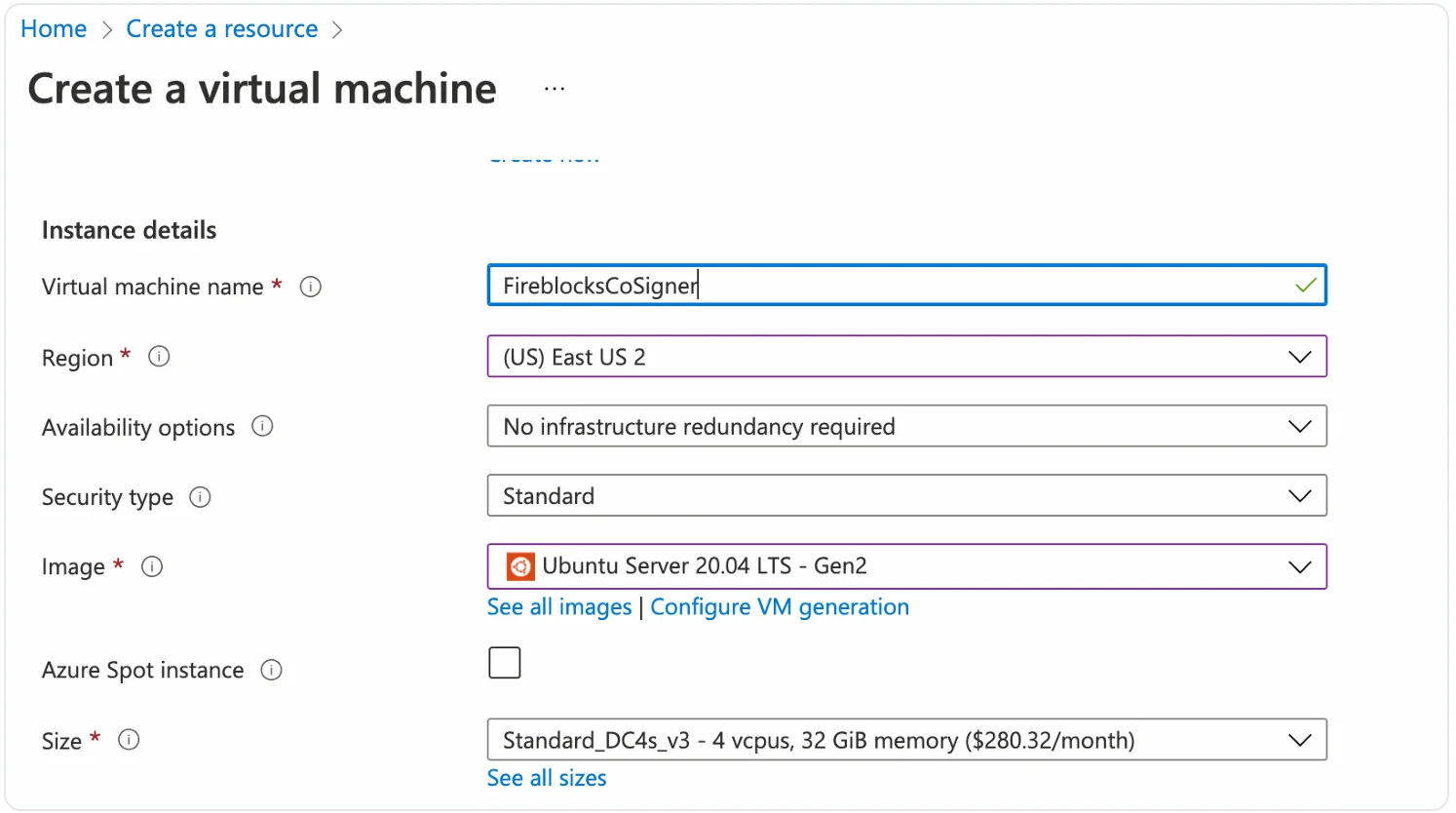
Complete the following steps to create an SGX-capable VM in Azure:
1. Select Ubuntu 22.04 LTS or Ubuntu 24.04 LTS (Canonical) as the image, with the latest Intel microcode (BIOS update). The microcode is automatically updated on Azure.
2. Select your region.
3. Under the **Advanced** tab, select **Gen 2**.
4. Select Size. The recommended size is `Standard_DC4s_v3`.
`Standard_DC4s_v3` is not mandatory. `Standard_DC4s_v2` also works, but v3 allows for optimized performance that is not available out of the box with v2. Therefore, requesting a quota increase by opening a ticket with the Azure support team is required. Consult with the official Microsoft documentation for a list of SGX-supported instances.
5. Name your Co-signer VM and create it.
The final resource setup window should look like this:
 ### Step 1.3: Verify SGX is enabled on your VM
After creating your virtual machine, confirm that SGX is enabled. The SGX Co-signer requires a server with SGX enabled and the latest patches applied. This verification ensures smooth operation and avoids potential issues.
To verify that SGX is enabled on the VM, run the following commands with root privileges::
```bash theme={"system"}
apt update
apt upgrade
apt install cpuid
cpuid -1 | grep -i sgx
```
Verify the following:
1. `SGX`: Software Guard Extensions supported is **true**
2. `SGX_LC`: SGX launch config supported is **true**
### Step 1.3: Verify SGX is enabled on your VM
After creating your virtual machine, confirm that SGX is enabled. The SGX Co-signer requires a server with SGX enabled and the latest patches applied. This verification ensures smooth operation and avoids potential issues.
To verify that SGX is enabled on the VM, run the following commands with root privileges::
```bash theme={"system"}
apt update
apt upgrade
apt install cpuid
cpuid -1 | grep -i sgx
```
Verify the following:
1. `SGX`: Software Guard Extensions supported is **true**
2. `SGX_LC`: SGX launch config supported is **true**
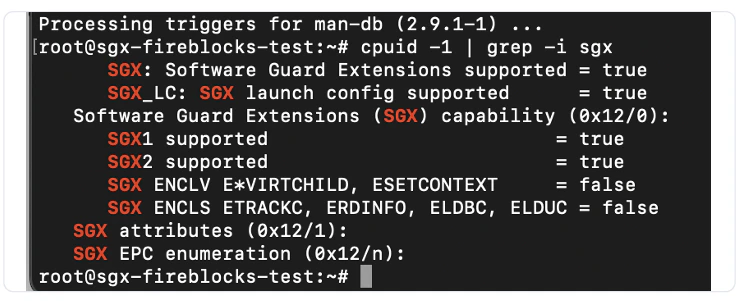 Azure `Standard_DC4s_v2` instances do not support SGX2. However, SGX2 is not required to run the Co-signer.
### Step 1.4: **Verify the required software packages**
The installation script automatically installs Docker, Docker Compose, and PIP if not already present on the machine. No manual installation is required for these dependencies.
Here are the commands as they are executed in the install script:
**Docker**
```text theme={"system"}
sudo apt-get install -y apt-transport-https ca-certificates curl gnupg-agent software-properties-common
curl -fsSL https://download.docker.com/linux/ubuntu/gpg | sudo apt-key add -
sudo add-apt-repository -y "deb [arch=amd64] https://download.docker.com/linux/ubuntu $(lsb_release -cs) stable"
sudo apt-get update
sudo apt-get install -y docker-ce docker-ce-cli containerd.io
```
**Docker Compose**
```text theme={"system"}
sudo curl -L "https://github.com/docker/compose/releases/download/1.29.2/docker-compose-$(uname -s)-$(uname -m)" -o /usr/local/bin/docker-compose
sudo chmod +x /usr/local/bin/docker-compose
```
**PIP**
```text theme={"system"}
curl https://bootstrap.pypa.io/get-pip.py | python3
```
**Verify or install the SGX driver**
On Ubuntu 22.04 and 24.04, the SGX driver is built into the kernel. Before running the installation script, verify it is active:
```text theme={"system"}
ls /dev/sgx_enclave /dev/sgx_provision
```
If both devices are listed, no further action is needed. Proceed to the next step.
If the devices are not present, verify you are running on a the right machine type.
### Step 1.5: Additional security recommendations
It is highly recommended to control user and network access to Co-signer's machine. See [API Co-signer security checklist and recommended defense and monitoring systems](/docs/co-signer-security-checklist-defense-monitoring) for further information.
***
## Step 2: Add a Co-signer to the workspace using an API user
Follow the instructions to [add a new Co-signer to the workspace](/reference/install-api-cosigner-add-new-cosigner-p2). Ensure you copy to your clipboard the following items, which you will use during the installation process:
* The API user's pairing token
* The download link of the Co-signer's installation script
***
## Step 3: Install and connect the Co-signer to the workspace
You must have root privileges on the Co-signer machine to install the Co-signer. Ensure you are logged in as a root user or use `sudo` to execute the commands.
### Step 3.1: Download the installation script
Using the download link of the SGX Co-signer installation script you copied from the Console, run the `curl` command to download the package directly to your machine.
Paste the appropriate URL into the following command:
```bash theme={"system"}
curl -o cosigner "URL"
```
### Step 3.2: Run the installation script
After downloading the installation script, navigate to the directory containing the script and modify the script's permissions to make it executable:
```bash theme={"system"}
chmod +x cosigner
```
To install the Co-signer, run:
```bash theme={"system"}
./cosigner setup
```
You will be prompted to enter the **Pairing token** for the API user, which you retrieve from the Fireblocks Console. This token pairs the API user with the Co-signer.
At this stage, you will have the option to configure the Callback Handler parameters for the API user connecting the Co-signer to the workspace. This feature is optional. You can [configure it later through the Console, APIs, or locally](/reference/api-cosigner-operate) from the Co-signer's host machine.
For detailed instructions on setting up your Callback Handler's interface to the Co-signer and implement its logic and code, refer to the [Setup API Co-signer Callback Handler](/reference/api-cosigner-setup-callback-handler) section.
The setup process validates the machine's hardware and installs the necessary drivers to support the appropriate SGX version and the SGX Co-signer's executable image. It includes an attestation flow to ensure that the SGX Co-signer's executable runs securely inside an Intel SGX enclave. Additionally, the script installs other required components.
Once installation is complete, to start the cosigner run: `./cosigner start`. At the end of the process, the Co-Signer generates a JSON configuration file, which can be used for future configuration updates.
### Step 3.3: Approve MPC key shares for the API user
If the API user used to pair with the Co-Signer and connect it to your workspace has an Admin or User role, the workspace owner will receive a notification. This notification will prompt them to approve a new MPC key share request for that API user using the Fireblocks mobile app.
You can now see the Co-signer you installed in the Co-signers tab within the Console's Developer Center. Observe it is online and that the API user is paired to it. **To check the Co-signer's status and observe the logs, see the SGX Co-signer Maintenance article.**
Azure `Standard_DC4s_v2` instances do not support SGX2. However, SGX2 is not required to run the Co-signer.
### Step 1.4: **Verify the required software packages**
The installation script automatically installs Docker, Docker Compose, and PIP if not already present on the machine. No manual installation is required for these dependencies.
Here are the commands as they are executed in the install script:
**Docker**
```text theme={"system"}
sudo apt-get install -y apt-transport-https ca-certificates curl gnupg-agent software-properties-common
curl -fsSL https://download.docker.com/linux/ubuntu/gpg | sudo apt-key add -
sudo add-apt-repository -y "deb [arch=amd64] https://download.docker.com/linux/ubuntu $(lsb_release -cs) stable"
sudo apt-get update
sudo apt-get install -y docker-ce docker-ce-cli containerd.io
```
**Docker Compose**
```text theme={"system"}
sudo curl -L "https://github.com/docker/compose/releases/download/1.29.2/docker-compose-$(uname -s)-$(uname -m)" -o /usr/local/bin/docker-compose
sudo chmod +x /usr/local/bin/docker-compose
```
**PIP**
```text theme={"system"}
curl https://bootstrap.pypa.io/get-pip.py | python3
```
**Verify or install the SGX driver**
On Ubuntu 22.04 and 24.04, the SGX driver is built into the kernel. Before running the installation script, verify it is active:
```text theme={"system"}
ls /dev/sgx_enclave /dev/sgx_provision
```
If both devices are listed, no further action is needed. Proceed to the next step.
If the devices are not present, verify you are running on a the right machine type.
### Step 1.5: Additional security recommendations
It is highly recommended to control user and network access to Co-signer's machine. See [API Co-signer security checklist and recommended defense and monitoring systems](/docs/co-signer-security-checklist-defense-monitoring) for further information.
***
## Step 2: Add a Co-signer to the workspace using an API user
Follow the instructions to [add a new Co-signer to the workspace](/reference/install-api-cosigner-add-new-cosigner-p2). Ensure you copy to your clipboard the following items, which you will use during the installation process:
* The API user's pairing token
* The download link of the Co-signer's installation script
***
## Step 3: Install and connect the Co-signer to the workspace
You must have root privileges on the Co-signer machine to install the Co-signer. Ensure you are logged in as a root user or use `sudo` to execute the commands.
### Step 3.1: Download the installation script
Using the download link of the SGX Co-signer installation script you copied from the Console, run the `curl` command to download the package directly to your machine.
Paste the appropriate URL into the following command:
```bash theme={"system"}
curl -o cosigner "URL"
```
### Step 3.2: Run the installation script
After downloading the installation script, navigate to the directory containing the script and modify the script's permissions to make it executable:
```bash theme={"system"}
chmod +x cosigner
```
To install the Co-signer, run:
```bash theme={"system"}
./cosigner setup
```
You will be prompted to enter the **Pairing token** for the API user, which you retrieve from the Fireblocks Console. This token pairs the API user with the Co-signer.
At this stage, you will have the option to configure the Callback Handler parameters for the API user connecting the Co-signer to the workspace. This feature is optional. You can [configure it later through the Console, APIs, or locally](/reference/api-cosigner-operate) from the Co-signer's host machine.
For detailed instructions on setting up your Callback Handler's interface to the Co-signer and implement its logic and code, refer to the [Setup API Co-signer Callback Handler](/reference/api-cosigner-setup-callback-handler) section.
The setup process validates the machine's hardware and installs the necessary drivers to support the appropriate SGX version and the SGX Co-signer's executable image. It includes an attestation flow to ensure that the SGX Co-signer's executable runs securely inside an Intel SGX enclave. Additionally, the script installs other required components.
Once installation is complete, to start the cosigner run: `./cosigner start`. At the end of the process, the Co-Signer generates a JSON configuration file, which can be used for future configuration updates.
### Step 3.3: Approve MPC key shares for the API user
If the API user used to pair with the Co-Signer and connect it to your workspace has an Admin or User role, the workspace owner will receive a notification. This notification will prompt them to approve a new MPC key share request for that API user using the Fireblocks mobile app.
You can now see the Co-signer you installed in the Co-signers tab within the Console's Developer Center. Observe it is online and that the API user is paired to it. **To check the Co-signer's status and observe the logs, see the SGX Co-signer Maintenance article.**